![Layer 2.png]](https://help.bookvault.app/hs-fs/hubfs/Layer%202.png?height=31&name=Layer%202.png)
How to add a new title to Bookvault
You don't need to have your print-ready files ready before adding a title. You can create your title first and upload your files when they're ready.
From the Bookvault Portal, select Add a Title from the navigation menu.
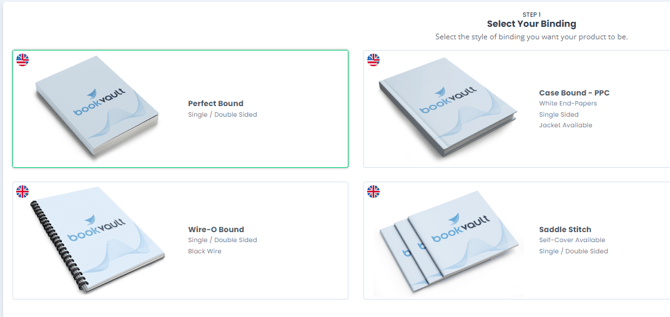
You'll then be able to choose the binding type you want for your book.
How do I choose my book's binding type?
The setup process varies depending on the binding you choose, so we've created a step-by-step video for each binding option.
Follow the video above to set up a Paperback title and select the specifications available for your book.
Follow the video above to set up a Case Bound title and choose the available cover, paper and book specifications.
Follow the video above to set up a Case Bound Cloth title and choose the available cloth and book specifications.
Follow the video above to set up a Wire-O title and choose the specifications available for this binding.
Follow the video above to set up a Spiral Bound title and choose the specifications available for your book.
Follow the video above to set up a Saddle Stitch title and choose the specifications available for this binding.
What information do I need when adding a title?
The options you're shown will depend on the binding you've selected, but you'll be guided through the specifications available for your book.
These can include:
- Binding
- Lamination
- Book size
- Paper stock
- Cover stock
- Mono and colour page count
- ISBN
- Book title and title information
You'll also see flags against available specifications showing where that particular book specification can be produced.
How do I enter my page count?
Enter the number of mono and colour pages within your interior PDF.
Don't include your cover in this calculation.
Your total number of mono pages + colour pages should equal the total number of pages in your interior PDF.
For more information:
Should I include my cover when calculating the amount of colour pages in my book?
What if I don't have an ISBN?
If you already have an ISBN, you can enter it while setting up your title.
If you don't have one, you can select Generate a Dummy ISBN.
Once you've completed the setup and checked your specifications, select Add to my library.
You'll then have the option to upload your print-ready files straight away or return and upload them later.
How to edit an existing title
If you need to change the specifications or information for a title you've already added, go to View Your Titles.
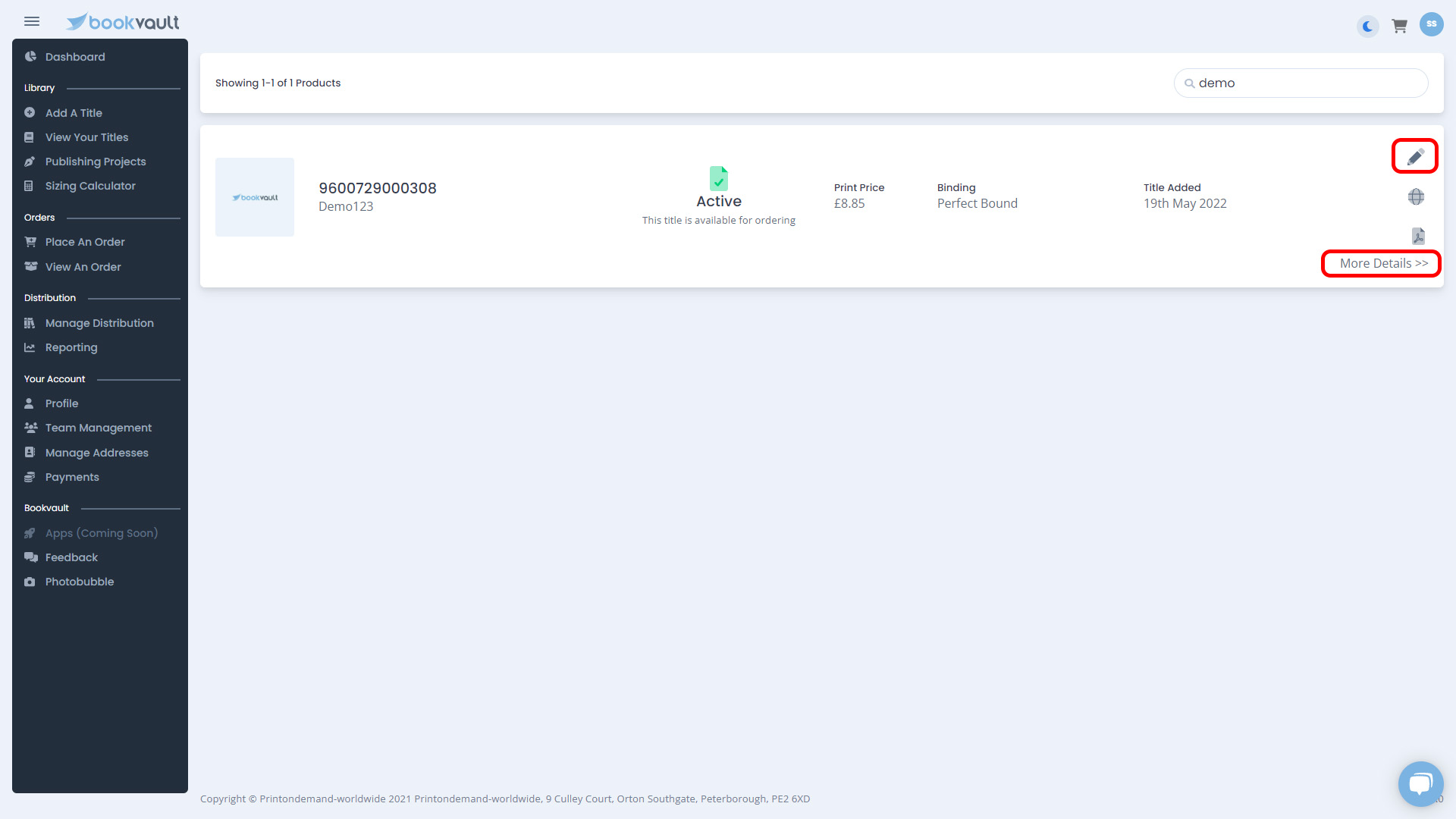
Find the book you want to change. You can search for it using its title or ISBN.
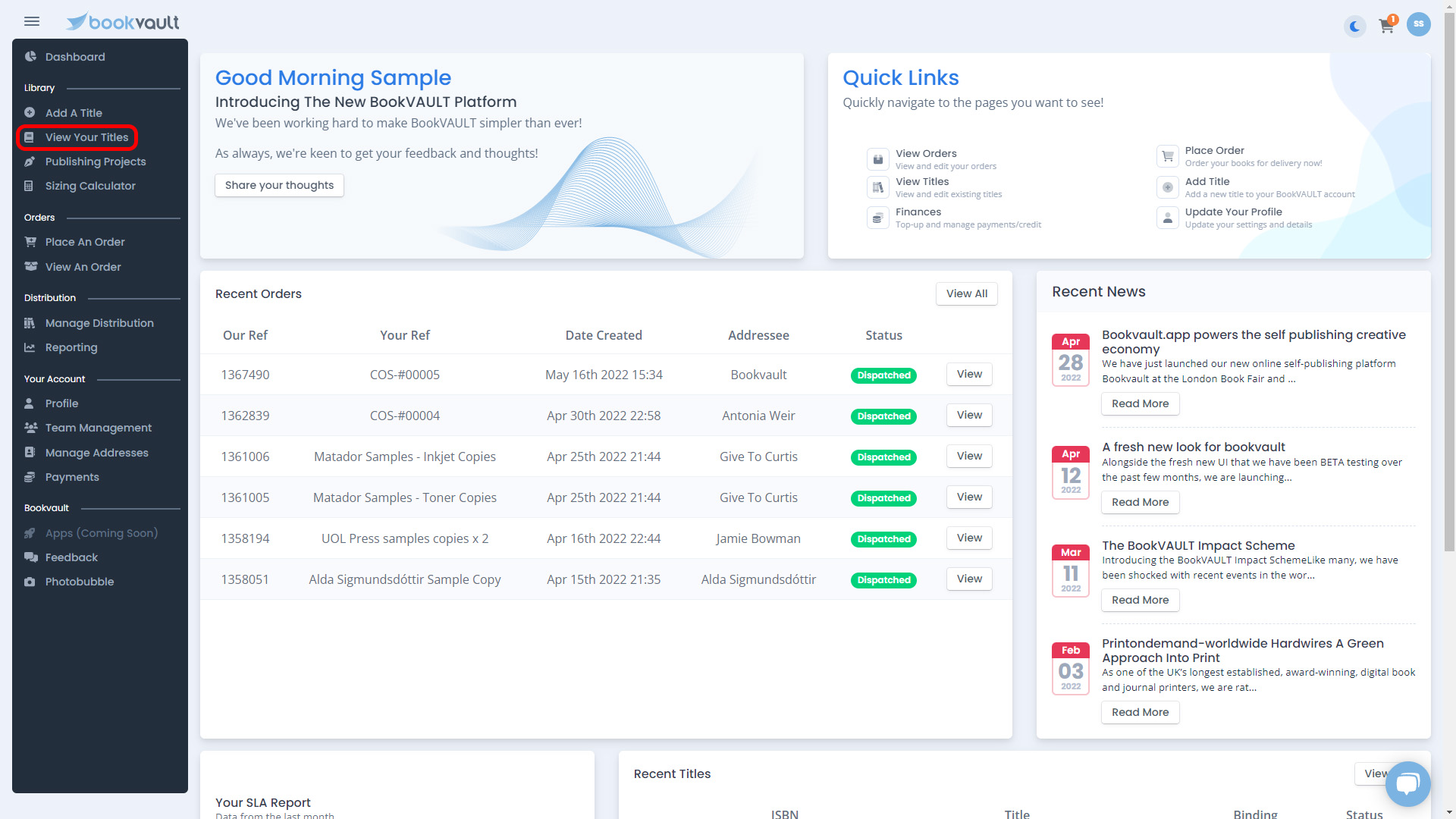

Select the pencil icon, or select: More Details → Edit Title

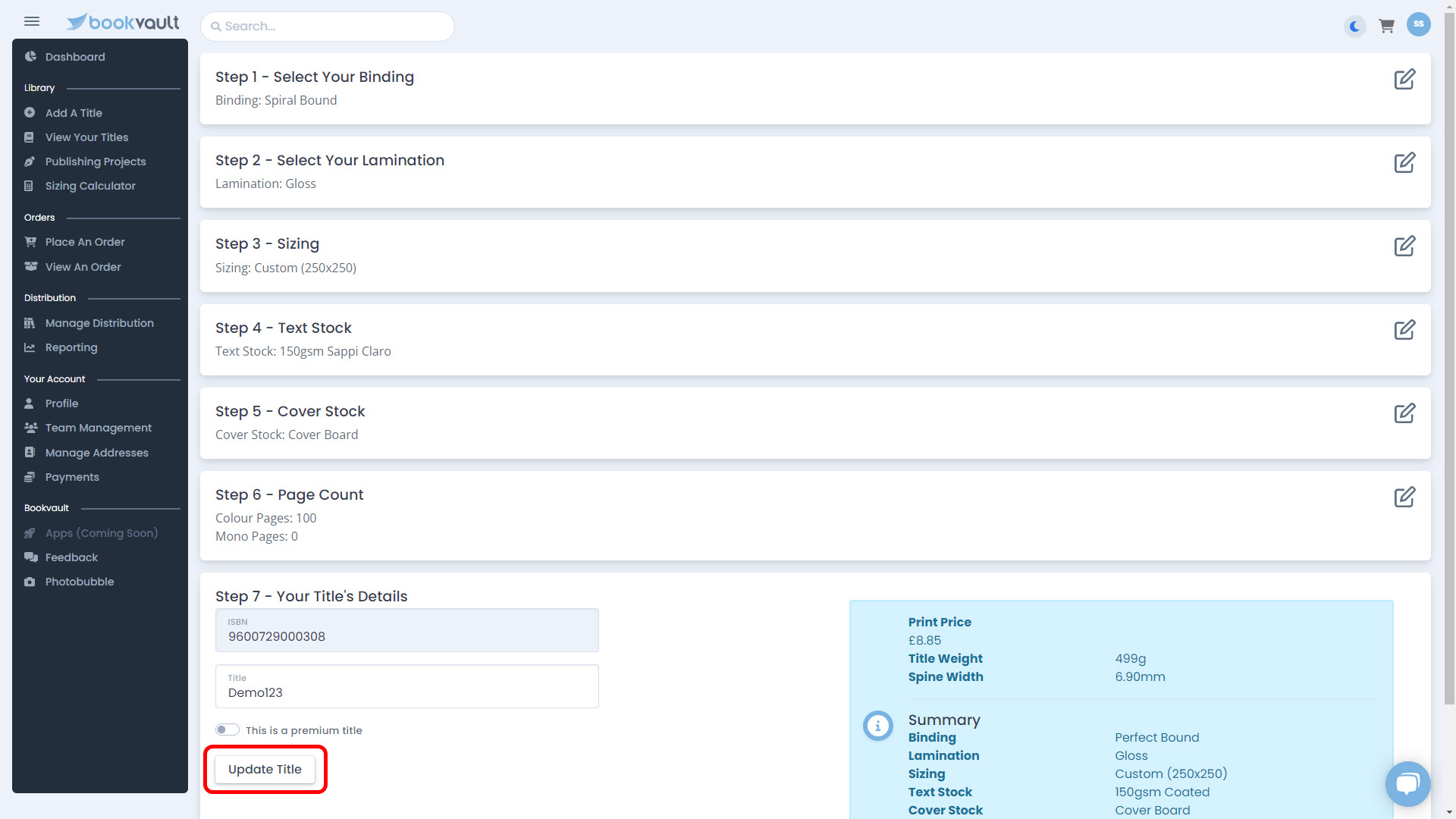
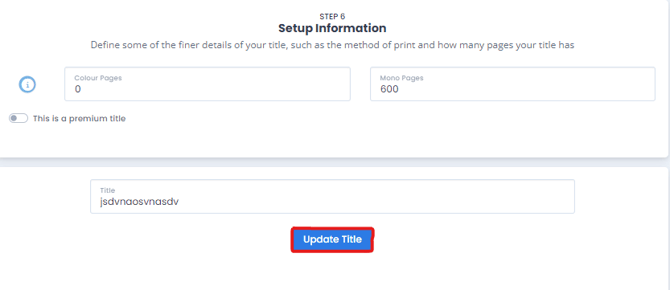
Once you've made your changes, select Update Title.
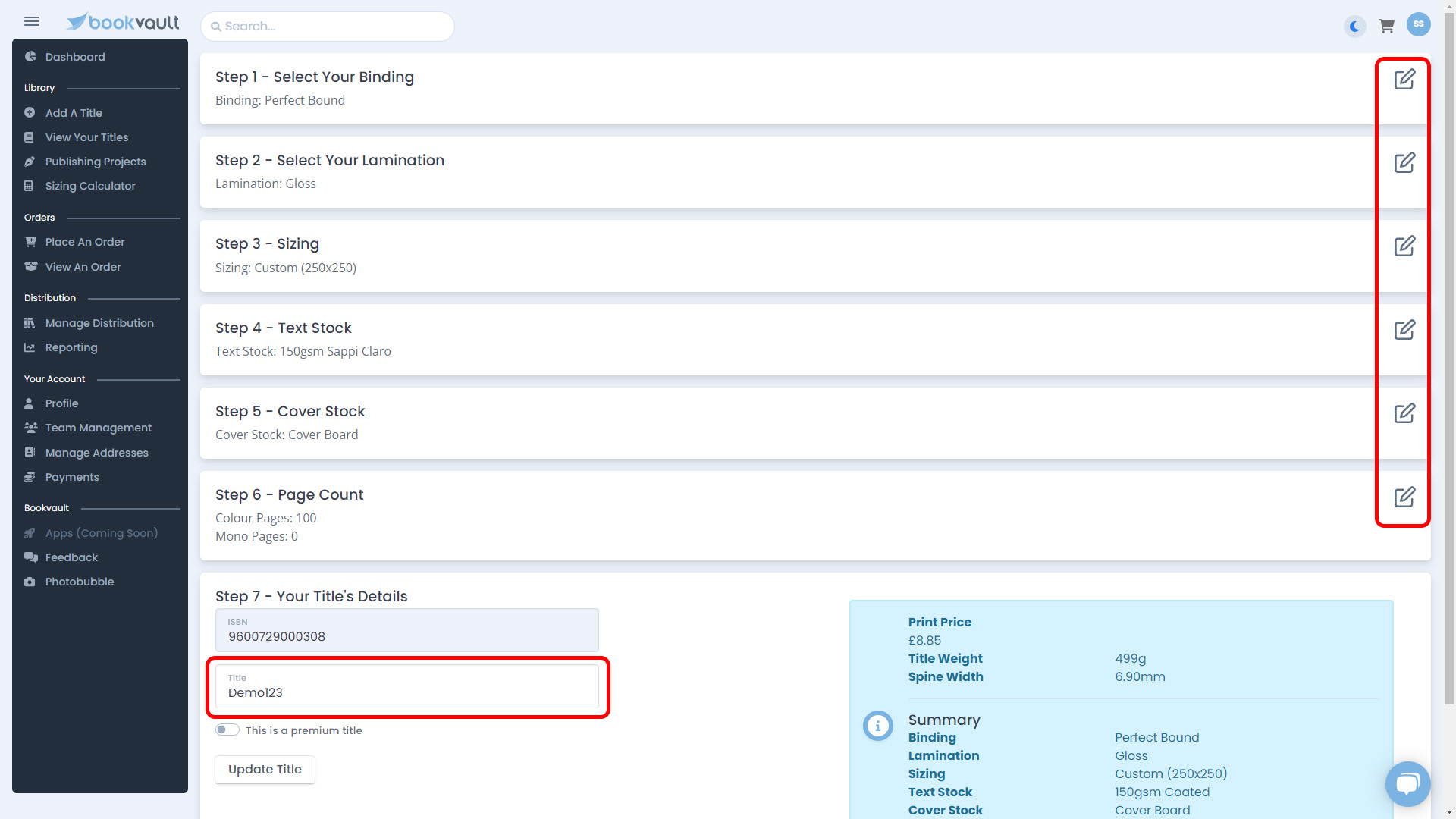
What happens if I change my book specifications?
If you change information that affects your files, such as the page count, binding or book size, your files will automatically go through validation again.
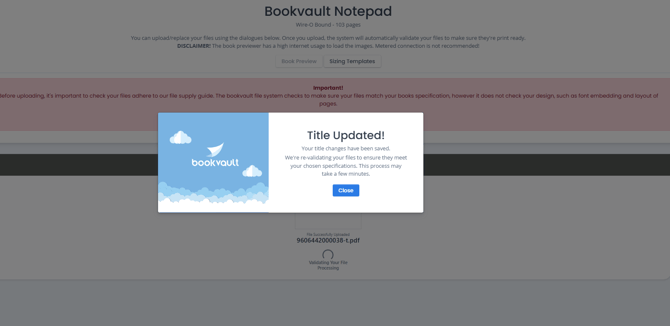
Make sure your uploaded files still match the specifications you've selected.
Can I change my ISBN here?
Your ISBN can't be changed through the normal Edit Title screen.
For information on changing an ISBN, see:
Can I Edit My ISBN Once I Have Added a Title?
How to edit a Publishing Project
If your title was created as a Publishing Project, you can also edit its specifications from your Bookvault account.
Go to Publishing Projects and find the project you want to change.

Select Edit Specification.
Make the required changes and then select Update Title.
A confirmation message will appear once your changes have been saved.

How to cancel a title
If you no longer want a title to be active, you can cancel it from your Bookvault library.
Go to View Your Titles and find the book you want to cancel.
Select:
More Details → Cancel Title


Cancelling a title prevents new orders from being placed and schedules the title to be removed from retailers that Bookvault made it available through.
Some third-party listings may still remain.

A cancelled title will remain visible within your Bookvault account.
Uploading new files to a cancelled title can reactivate it and send the files through validation again.
What if I only want to stop selling my book?
If your intention is specifically to remove your book from sale rather than manage/delete the title itself, see:
How Do I Delist a Book From Sale?
How to permanently delete a title
Deleting a title is different from cancelling it.
Go to View Your Titles, locate the title and select:
More Details → Delete Title

You'll be shown a warning asking you to confirm that you want to permanently delete the title

Once you confirm the deletion:
- The title is permanently removed from your Bookvault account.
- The title can't be recovered through the portal.
- The ISBN remains associated with its previous Bookvault record and can't simply be used to create a new title.
If you later need to use an ISBN that was attached to a deleted title, contact Bookvault Support. The team can check whether the ISBN can be recovered for you.

What's the difference between cancelling and deleting a title?
Cancelling a title keeps it visible within your Bookvault account but prevents new orders and schedules it to be removed from retailers Bookvault made it available through.
Deleting a title permanently removes it from your account and can't be reversed.
If you may need the title again in the future, cancelling it may therefore be more appropriate than permanently deleting it.
FAQs
Can I add my title before my files are ready?
Yes. You can add your title and specifications first and upload your print-ready files later.
Can I change my book specifications after adding it?
Yes. Go to View Your Titles and edit the title. If you change specifications that affect your files, such as the page count, binding or book size, your files will go through validation again.
Can I change the ISBN on an existing title?
The ISBN can't be changed through the normal Edit Title screen. See our dedicated ISBN article for guidance:
Can I Edit My ISBN Once I Have Added a Title?
Can I recover a deleted title?
No. Once you've permanently deleted a title, it can't be recovered.
Does cancelling a title delete it?
No. A cancelled title remains visible within your Bookvault account.