![Layer 2.png]](https://help.bookvault.app/hs-fs/hubfs/Layer%202.png?height=31&name=Layer%202.png)
Yes. You can use the Bookvault Shopify app alongside other suppliers or fulfilment providers on the same Shopify store.
There are a few important settings to check to make sure your products, shipping rates and orders are handled correctly.
Make sure your SKU matches your Bookvault ISBN
For Bookvault to recognise and fulfil a product, the product's SKU must contain the ISBN used for that title in Bookvault.
This allows the Bookvault app to identify which book should be produced when an order is received.
Check your Shopify inventory locations
If you're using multiple fulfilment providers, make sure your Shopify locations and order-routing settings are configured correctly.
Bookvault does not choose which Shopify location receives an order. This is controlled by Shopify through your:
- Inventory locations
- Order-routing settings
- Delivery profiles
Check these carefully when more than one fulfilment provider is connected to your store.
Be careful with shipping weights
Different fulfilment services can use different methods for calculating shipping.
For example, some services may require you to enter a fixed product weight and manually create shipping rates.
Bookvault instead creates a weight-based shipping rate card using the actual product weights.
If another service requires you to change the weight of a product, this could create a discrepancy between the product weight and Bookvault's shipping rates, potentially causing you to undercharge or overcharge your customer for shipping.
How to link an existing Shopify product to Bookvault
Step 1 – Add the product to Bookvault
Open the product in Shopify.
Under More Actions, select:
Add to Bookvault

Step 2 – Link the product
If the product contains an ISBN that Bookvault recognises from your account, a possible link will appear.
If the correct Bookvault product is displayed, select Approve Link.
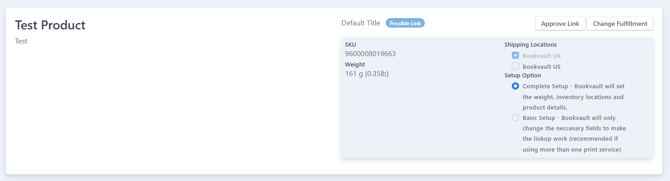
Alternatively, if your product is not recognized, you'll see the below:

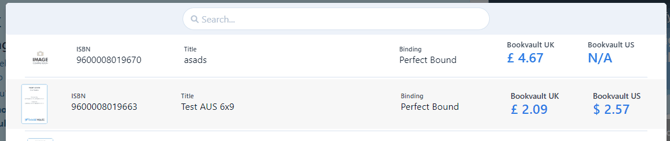
If Bookvault doesn't automatically recognise the product, select Setup Fulfillment and choose the Bookvault title you want the Shopify product linked to.
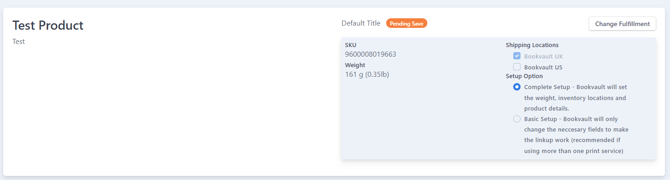
Once done, you should see that the product is pending a save:
Step 3 – Choose your Bookvault locations
Select the Bookvault print locations you want to use for the product.
Some locations may be greyed out if your book specification isn't available from that particular print location.
Step 4 – Choose Basic Setup or Complete Setup
If you're using Bookvault alongside another fulfilment provider, you'll have two setup options.
Basic Setup
Basic Setup makes the minimum changes required to connect the product to Bookvault.
It:
- Changes the SKU to match your Bookvault ISBN
- Adds your selected Bookvault inventory locations
Basic Setup is the recommended option when using another fulfilment provider alongside Bookvault.
However, the product weight won't be set by Bookvault, which could cause discrepancies if you're using Bookvault's shipping profile.
Complete Setup
Complete Setup configures the product fully for Bookvault.
It:
- Sets the product weight
- Removes the requirement for stock
- Makes Bookvault the sole supplier for the product
If another fulfilment provider also needs to fulfil the same product, use Basic Setup instead.
Step 5 – Save your changes
Once you're happy with your selections, click Save.
Bookvault will push the selected changes to Shopify and make the product available with your chosen setup.
What if I'm creating a new Shopify product?
Bookvault completes the full setup process when a product is initially linked to the platform.
You can create the product using the normal Shopify setup process and then make any additional changes required for the other fulfilment services you're using.