![Layer 2.png]](https://help.bookvault.app/hs-fs/hubfs/Layer%202.png?height=31&name=Layer%202.png)
Step 1: Open Reader Notifications
From your BookVault dashboard, find the Reader Notifications card and click Manage Notifications in the top-right corner. This opens the page where you write and send updates to your subscribed readers.

Step 2: Add a Reply-To Email (Optional)
In the Reply-To Email field, enter an address if you'd like readers to be able to reply directly to your notification. This field is optional — leave it blank if you don't need replies routed anywhere specific.
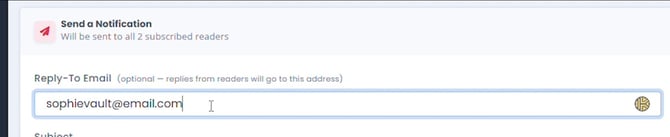
Step 3: Write Your Subject and Message
Type a headline into the Subject field, then write your update in the Message box below it. The message editor supports basic formatting — bold, italics, lists, quotes, and tables — using the toolbar above it.
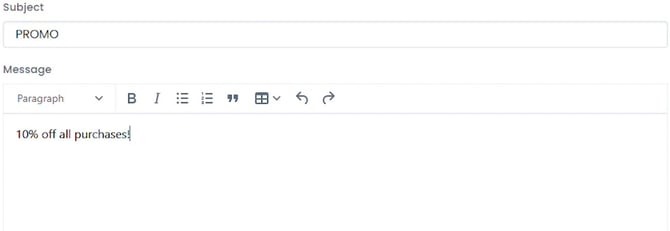
Step 4: Send to All Readers
Once your subject and message are ready, click Send to All Readers. It goes out immediately to everyone subscribed on your BookVault Shop author page.

Step 5: Review Your Recent Notifications
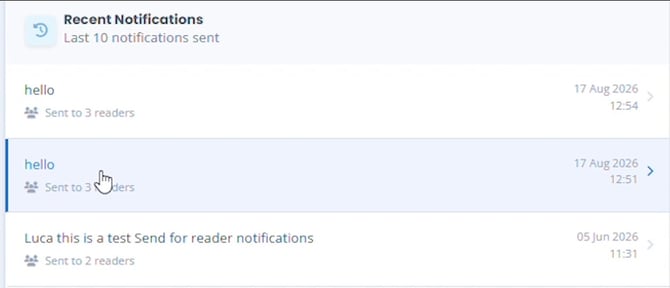
Check the Recent Notifications list on the right before sending a new update — it shows your last 10 notifications, their subject, and how many readers each reached. Click any entry to open its details. This helps you avoid repeating yourself and keeps track of what you've already shared.
Frequently Asked Questions
How many reader notifications can I send?
You're limited to 3 notifications per week and 5 per month. Counters at the top of the Reader Notifications page show how many sends you have left in each period.
Who receives my reader notification?
Every reader who has subscribed on your BookVault Shop author page. Your current subscriber count is shown at the top of the page.
Is the Reply-To Email field required?
No, it's optional. Leave it blank if you don't need a specific reply address, or fill it in so reader replies land directly in your inbox.
Is there a character limit for the message?
Yes. The message editor shows a live character counter and caps messages at 500 characters.
Can I format my message?
Yes. The Message editor's toolbar supports bold, italics, bulleted and numbered lists, quotes, and tables.
How do I avoid sending readers the same update twice?
Check the Recent Notifications list before sending — it shows your last 10 notifications, including their subject line and how many readers each was sent to.
Can I see the details of a past notification?
Yes. Click any entry in the Recent Notifications list to open its details.