![Layer 2.png]](https://help.bookvault.app/hs-fs/hubfs/Layer%202.png?height=31&name=Layer%202.png)
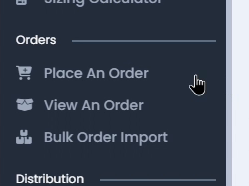
Step 1: Open the Place An Order Page
From your Bookvault dashboard, click "Place An Order" under the Orders section in the left-hand menu. This opens the order builder, where adding products, choosing delivery and production options, and reviewing your total all happen on a single page.
Step 2: Add a Title to Your Order
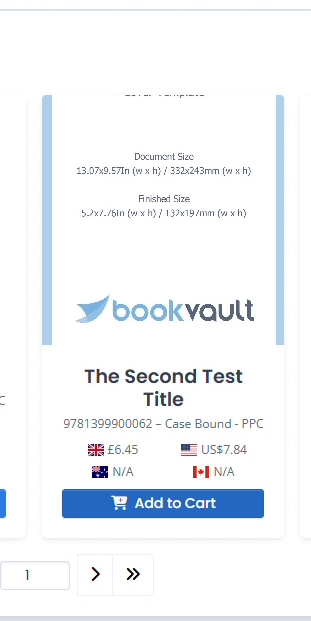
Search your catalogue by title or ISBN, or pick straight from "Recently ordered", "Most popular", "Newly added", or "All products". Click "Add to Cart" on any title to add it — the Order items panel on the right updates instantly, and you can adjust the quantity with the +/- controls once it's in your cart.
Step 3: Choose Your Destination Country
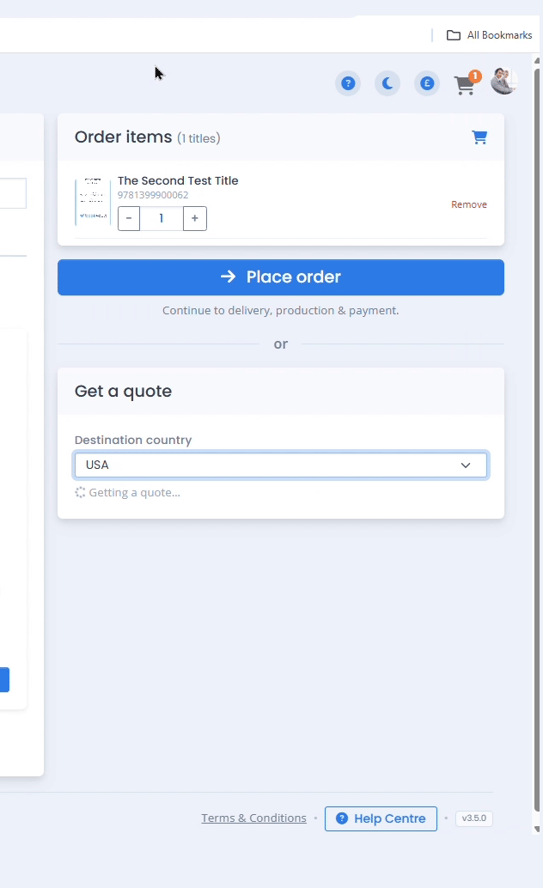
Under "Get a quote", open the Destination country dropdown and select where the order is shipping to. Bookvault uses this to work out which print locations can fulfil the order and what it'll cost to get there.
Step 4: Compare Print Locations and Quotes
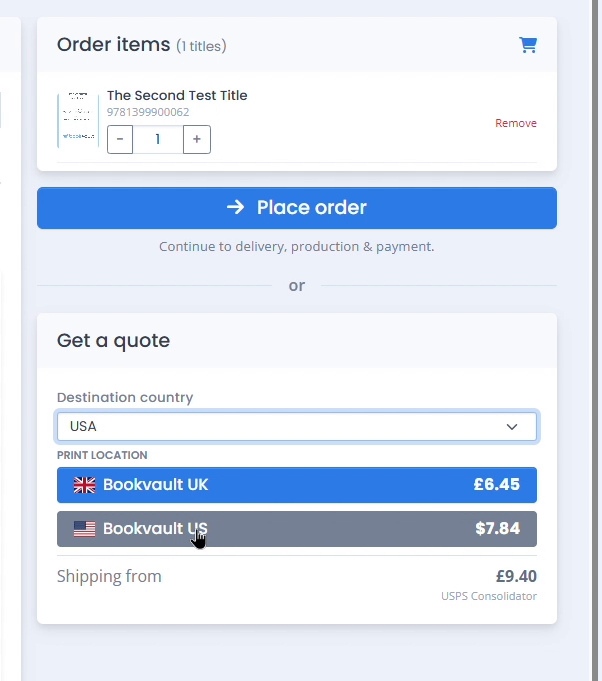
Once a destination is set, Bookvault lists every print location that can fulfil the order with its price — for example Bookvault UK at £6.45 versus Bookvault US at $7.84 — plus the shipping cost from each. Pick whichever combination of print location and price works best before continuing.
Step 5: Enter Your Delivery Address
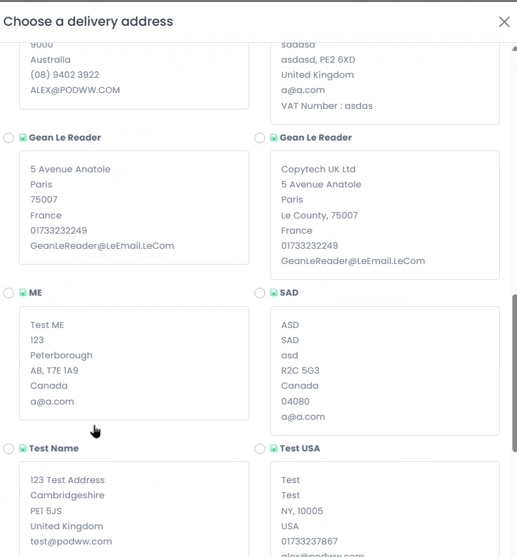
In the Delivery tab, either fill in the address fields directly or click "Use saved address" to pick from addresses you've used before. You can also add a new address on the fly with "Add new address" if this is a first-time destination.
Step 6: Choose Your Production and Shipping Speed
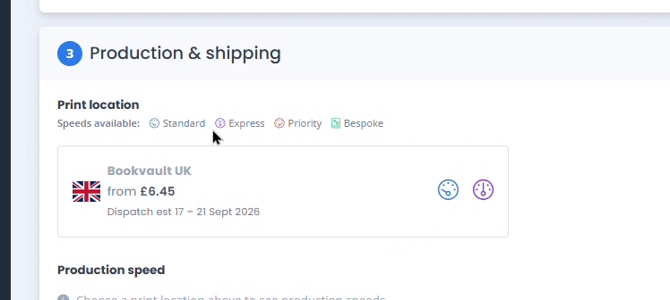
The Production & shipping section shows which speeds are available for this order — Standard, Express, Priority, or Bespoke — depending on the title and print location you've chosen. Pick a print location first to unlock the production speed and shipping service options below it.
Step 7: Compare Courier and Shipping Options
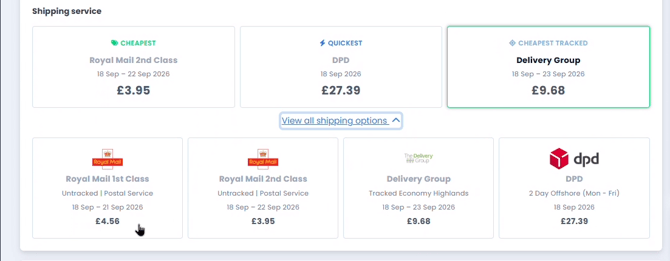
Bookvault highlights the Cheapest, Quickest, and Cheapest Tracked shipping options up front. Click "View all shipping options" to see every courier available — Royal Mail 1st and 2nd Class, Delivery Group, DPD, and more — each with its own delivery window and price, so you can pick exactly what this order needs.
Step 8: Complete the Customs Declaration (International Orders)
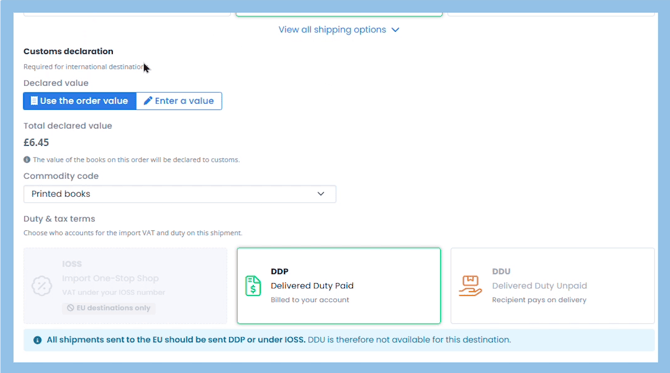
If you've chosen a shipping destination outside the UK, a Customs declaration section appears. Use the order value or enter your own declared value, choose a commodity code (Printed books is the default), and select who covers import VAT and duty — IOSS, DDP (billed to your account), or DDU (recipient pays on delivery). Note that certain options won't be available depending on the destination country — for example, DDU isn't offered for EU shipments.
Step 9: Add Extras and Choose Notifications
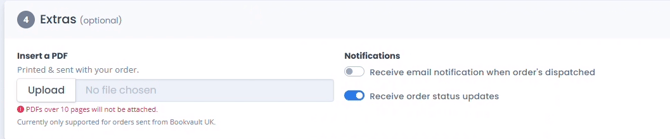
The optional Extras section lets you upload a PDF to be printed and sent alongside your order (note: PDFs over 10 pages won't be attached, and this is currently only supported for orders sent from Bookvault UK). Alongside it, toggle whether you'd like to receive an email notification when the order is dispatched and whether you want ongoing order status updates.
Step 10: Choose How You'll Pay
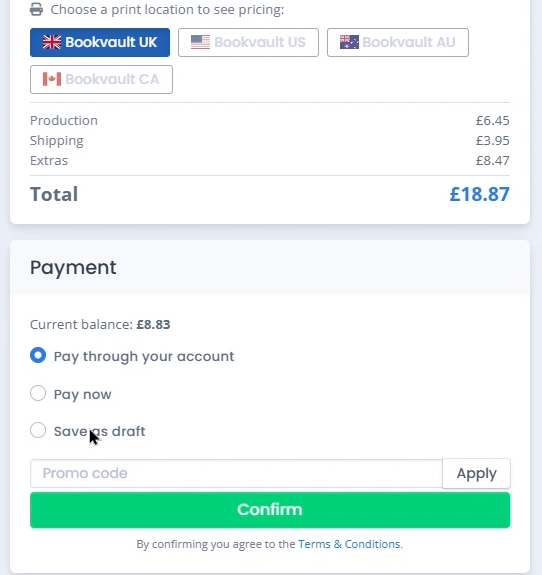
In the Payment panel, choose to pay through your account balance, pay now, or save the order as a draft to come back and complete later. You can also apply a promo code here before confirming.
Step 11: Review and Place Your Order
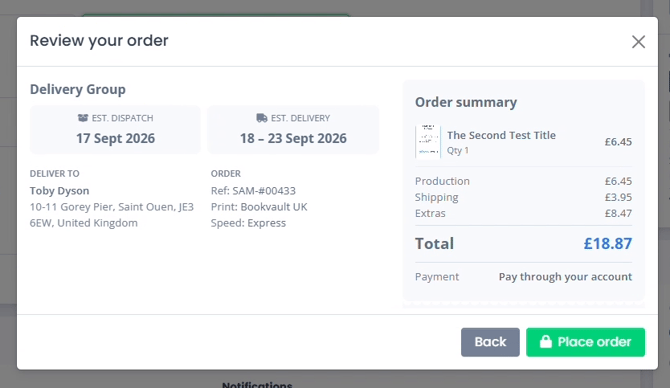
Clicking Confirm opens a final "Review your order" summary — delivery group, estimated dispatch and delivery dates, delivery address, production and shipping cost breakdown, and payment method. Check everything looks right, then click "Place order" to submit it.
Frequently Asked Questions
Can I order more than one title at once?
Yes. Add as many titles as you need from the Add products screen — each one appears as its own line in the Order items cart, and you can adjust quantities individually before checking out.
What happens if I don't choose a destination country?
You won't be able to see pricing or available print locations. Bookvault needs a destination to work out which print locations can fulfil the order and what shipping will cost.
Is the customs declaration section always shown?
No, it only appears for international destinations outside the UK. Domestic UK orders skip this step entirely.
What's the difference between DDP and DDU?
DDP (Delivered Duty Paid) means import VAT and duty are billed to your account upfront. DDU (Delivered Duty Unpaid) means the recipient pays those costs on delivery. Some destinations — EU shipments, for example — require DDP or IOSS and don't offer DDU at all.
Is there a limit on the PDF I can insert with my order?
Yes — PDFs over 10 pages won't be attached, and inserting a PDF is currently only supported for orders sent from Bookvault UK.
What does 'Save as draft' do?
It saves your order exactly as configured without charging you, so you can come back later, review it, and complete payment when you're ready.
Can I change something after I click Confirm?
The Confirm button opens a Review your order summary before anything is finalized — you can still check every detail there. If something needs changing before that point, use the Products, Delivery, Production, or Extras tabs to jump back and amend it.
Do shipping and production speed options change depending on the print location?
Yes. Available production speeds (Standard, Express, Priority, Bespoke) and shipping couriers depend on which print location you choose, so switching print locations can change what's on offer.
Can Bookvault place an order for me?
Bookvault is designed as a self-service platform, so customers normally place their own orders through the portal. If you run into an error while ordering, check the relevant Help Centre guidance first. If the issue continues, contact Bookvault support and include a screenshot of the error where possible.