![Layer 2.png]](https://help.bookvault.app/hs-fs/hubfs/Layer%202.png?height=31&name=Layer%202.png)
Step 1: Open the Buy Now Links Generator
From your BookVault dashboard, find the Buy Now Links card and click Generate Buy Now Link in the top-right corner. This opens the link generator in a pop-up window.

Step 2: Select the Product(s) You Want to Sell
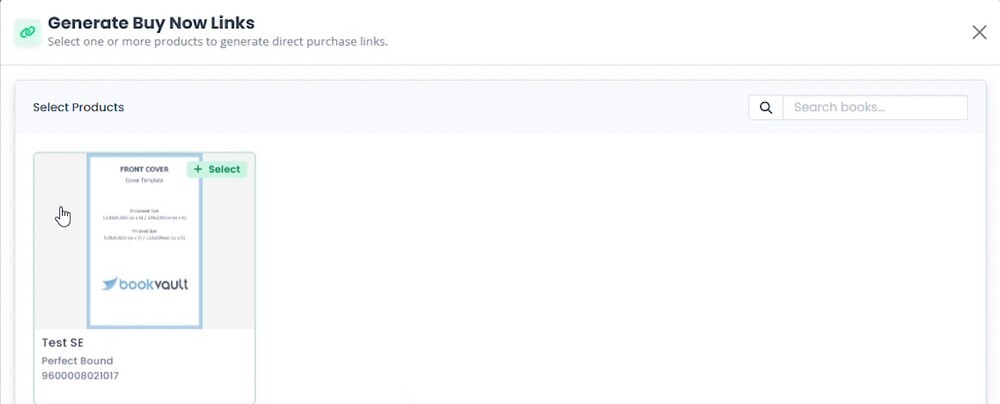
The Generate Buy Now Links window opens with a grid of your published titles. Click a book cover to select it — you can select more than one title if you want to generate several links at once.
Step 3: Generate the Link
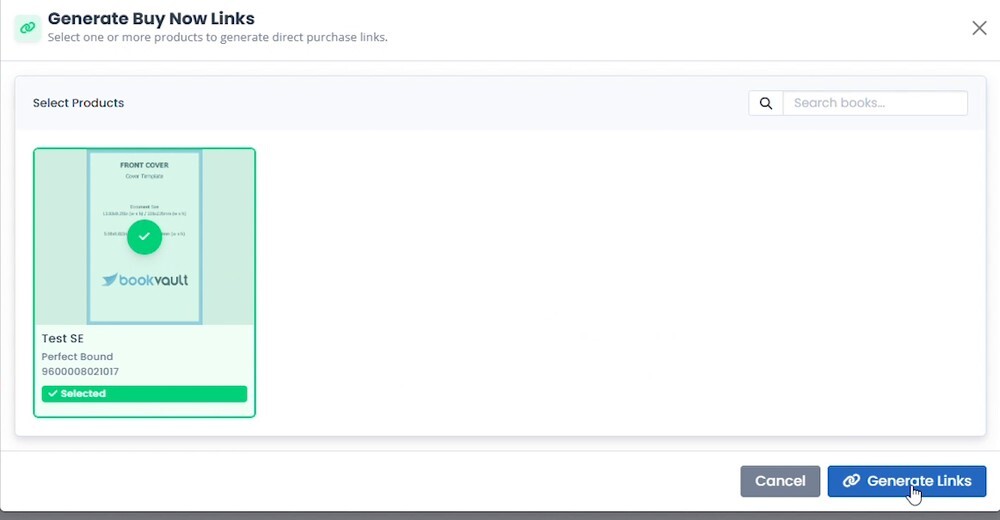
Once a title is selected, it's marked with a green checkmark and a Selected label. Click Generate Links at the bottom of the window to create the purchase link.
Step 4: Copy the Link
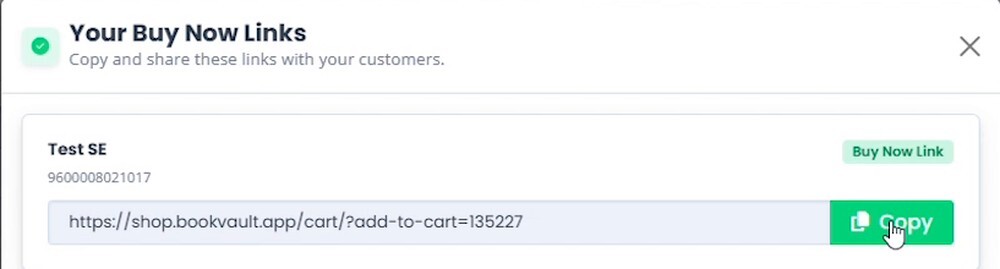
BookVault switches to the Your Buy Now Links screen and displays a unique purchase URL for each selected title. Click Copy next to a link to copy just that one, or use Copy All Links if you generated more than one.
Step 5: Share the Link with Your Customers
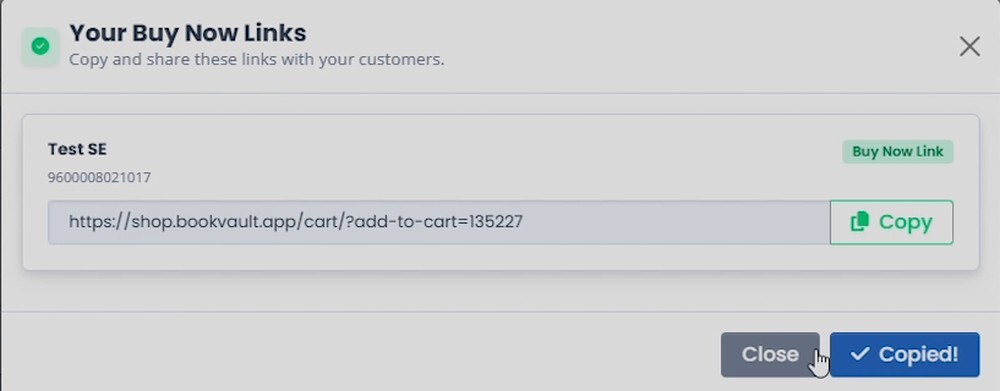
The button briefly changes to Copied! to confirm the link is on your clipboard. Click Close and paste the link anywhere you'd share it — an email newsletter, a social media post, your author website, or a link-in-bio page. When a customer clicks it, the title is already waiting in their basket, so checkout only takes a click or two.
Frequently Asked Questions
What is a Buy Now Link in BookVault?
It's a direct purchase URL for one of your titles on your BookVault Shop. Instead of sending customers to your storefront to search for the book, the link adds it straight to their basket so they land on checkout ready to buy.
Can I create Buy Now Links for more than one book at a time?
Yes. In the Select Products step, click on as many titles as you want to include before clicking Generate Links.
What happens if I select multiple products before generating links?
Each selected title gets its own individual purchase link. All of them appear together on the Your Buy Now Links screen, where you can copy them one at a time or use Copy All Links to grab every link at once.
Where can I share my Buy Now Link?
Anywhere you can post a URL: email campaigns, social media bios and posts, your author website, blog posts, or printed QR codes. The link works the same wherever it's clicked.
Does the Buy Now Link take customers straight to checkout?
It takes them to your BookVault Shop cart with the selected title already added, so they can review their basket and check out immediately — no need to search your shop first.
Can I find a Buy Now Link again after I've closed the window?
Reopen the generator from the Buy Now Links card, select the same title, and click Generate Links again to get the same purchase link.