![Layer 2.png]](https://help.bookvault.app/hs-fs/hubfs/Layer%202.png?height=31&name=Layer%202.png)
Step 1: Open the Create Promo Code Window
On the BookVault Shop management page, find the Promo Codes card and click + Create Promo Code in the top-right corner. This opens the Create Promo Code window, where you'll set up the discount and choose which book it applies to.

Step 2: Name Your Code and Add a Description
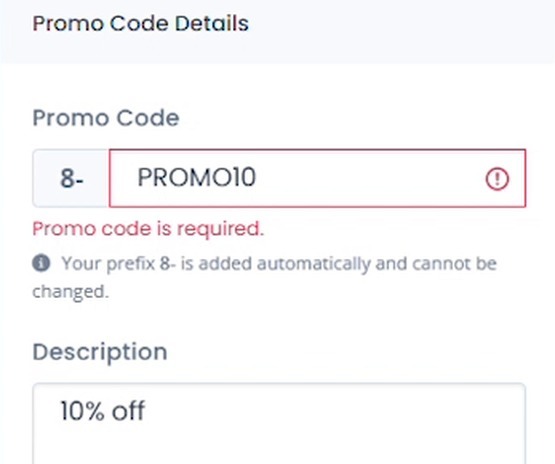
Type a code into the Promo Code field — BookVault automatically adds a fixed prefix in front of it that can't be changed. Then add a short note in the Description field to remind yourself what the code is for.
Step 3: Set the Discount Percentage and Expiry Date
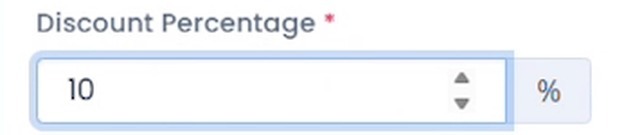
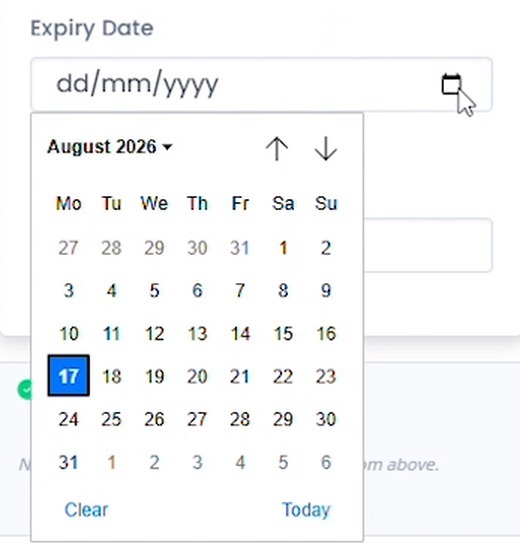
Enter the Discount Percentage customers will receive. Then, if the offer should end automatically, click the Expiry Date field and pick a date from the calendar — leave it blank if you want the code to run with no expiry.
Step 4: Set a Usage Limit
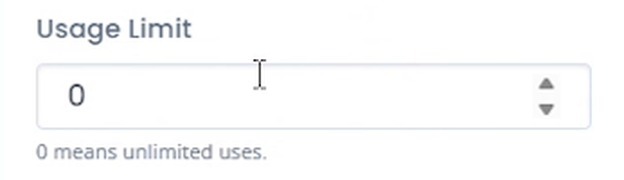
In the Usage Limit field, type how many times the code can be redeemed in total. Leaving it at 0 means unlimited uses.
Step 5: Link the Promo Code to a Product
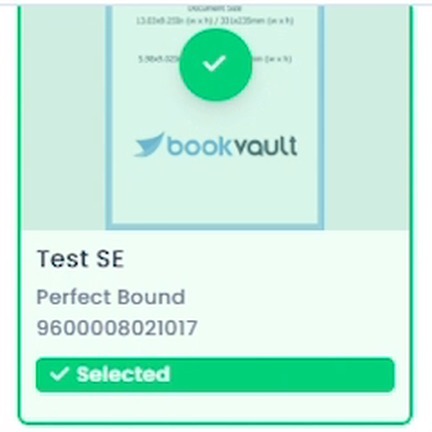
In the Link Products to this Promo Code panel, search for a title or scroll the list, then click a book's cover to select it. A green checkmark and Selected label confirm it's linked to the code.
Step 6: Check Profitability and Save
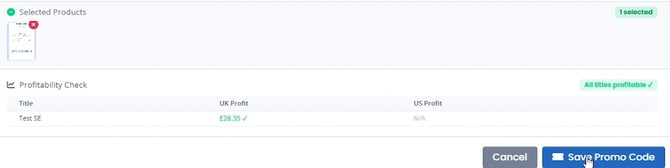
Once a book is linked, the Profitability Check table shows the UK and US profit you'll still make on it after the discount — a green All titles profitable badge confirms the code doesn't cut into your margin. When you're happy with it, click Save Promo Code.
Step 7: Confirm Your Promo Code Is Live
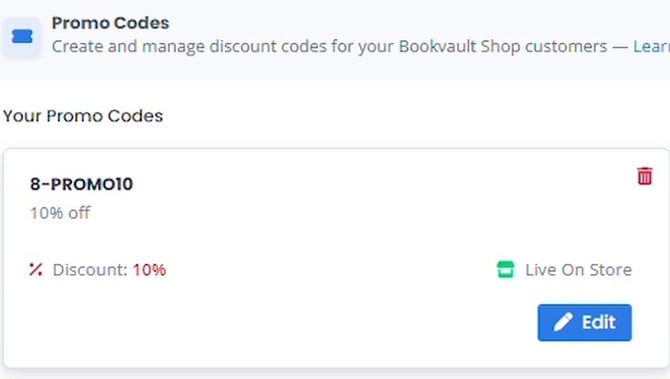
BookVault saves the code and shows a confirmation message. Your new promo code now appears under Your Promo Codes with a green Live On Store label, ready for customers to use at checkout.
Frequently Asked Questions
What does the prefix before my promo code mean?
BookVault automatically adds a fixed prefix to every code you create, and it can't be changed. Customers enter the full code, prefix included, at checkout.
What happens if I leave the Expiry Date blank?
The code stays active indefinitely — the field's helper text confirms "Leave blank for no expiry" — until you edit or delete it yourself.
What does a Usage Limit of 0 mean?
Zero means unlimited uses. Enter a number instead if you want to cap how many times the code can be redeemed in total.
What is the Profitability Check for?
It shows the UK and US profit you'd still make on each linked title after the discount is applied, so you can confirm the code won't cut into your margin before saving.
Can I link more than one book to a promo code?
Yes. Search or scroll the Link Products panel and click each book cover you want to include — every title you select appears in the Selected Products tray and gets checked in the Profitability Check table.
Can I edit or remove a promo code after creating it?
Yes. Each promo code on the Promo Codes card has an Edit button to update it, plus a delete icon to remove it.
How do I know if a promo code is live for customers?
A green Live On Store label appears on the promo code's card once it's saved, confirming customers can use it at checkout.