![Layer 2.png]](https://help.bookvault.app/hs-fs/hubfs/Layer%202.png?height=31&name=Layer%202.png)
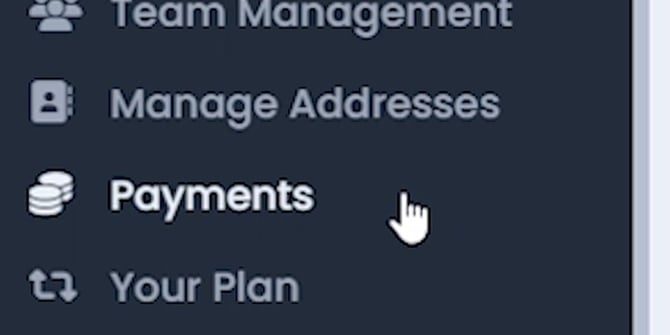
Step 1: Open Payments
From your BookVault dashboard sidebar, under Your Account, click Payments. This opens your account's payment overview, including your balance, spending history, and ledger.
Step 2: Choose a Currency
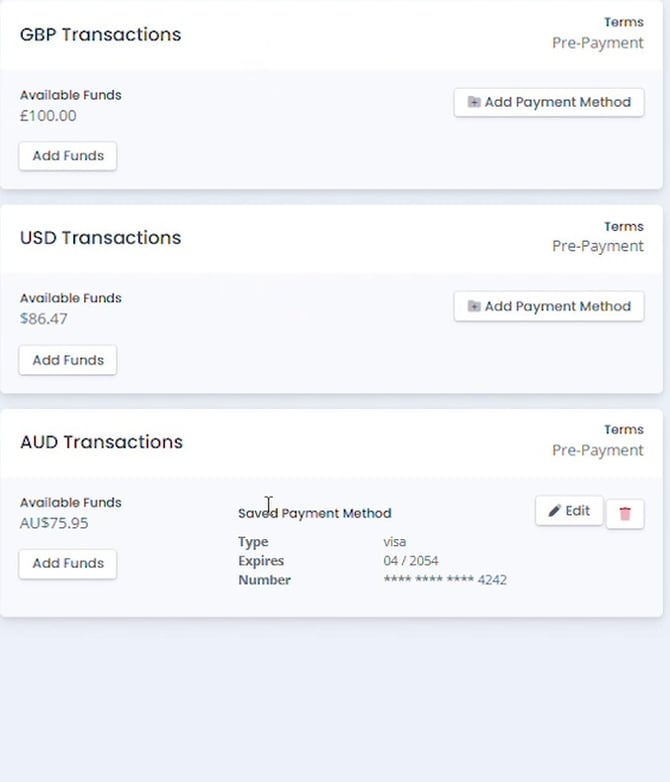
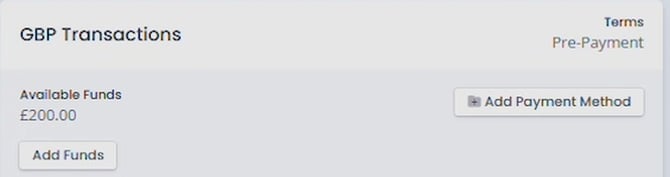
On the right side of the Payments page, you'll see a card for each currency you can hold a balance in — GBP, USD, and AUD Transactions. Find the currency you want to top up and click its Add Funds button.
Step 3: Choose an Amount
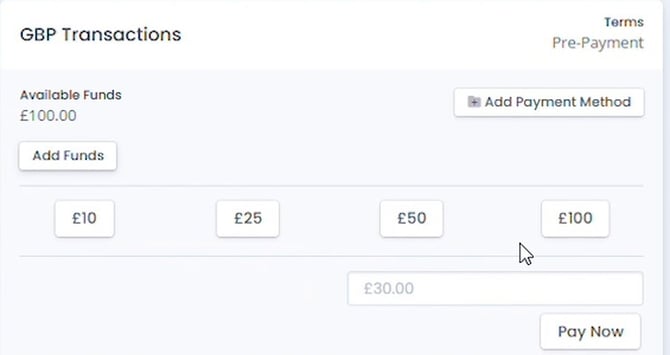
Clicking Add Funds expands a quick-amount selector. Pick one of the predetermined amounts, or type your own amount into the field below them, then click Pay Now.
Step 4: Complete Your Payment
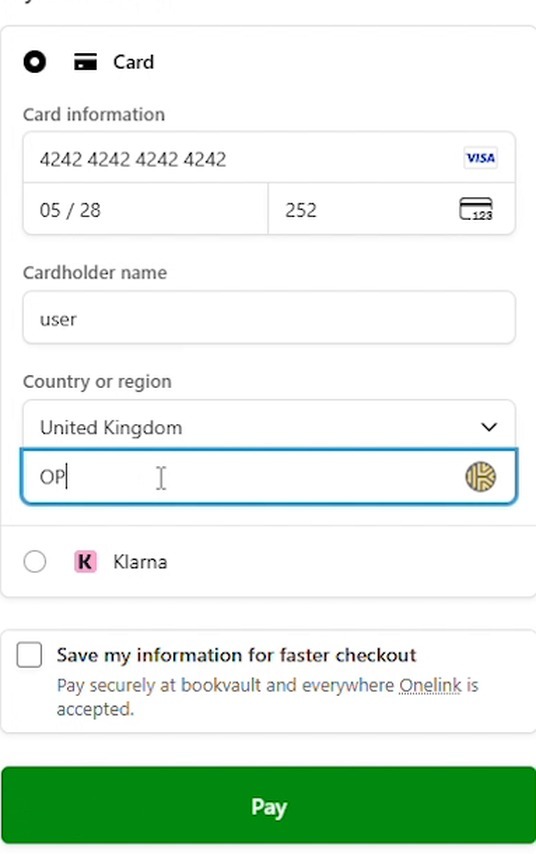
BookVault opens a secure Stripe checkout for your top-up. Enter your card details, or use Apple Pay, Klarna, or Onelink instead. Tick Save my information for faster checkout if you'd like this method saved for next time, then click Pay.
Step 5: Confirm Your Funds Are Updated
Once payment is processed, BookVault returns you to the Payments page. The Available Funds total for that currency updates immediately, and a new entry appears at the top of Your Ledger.

Frequently Asked Questions
Can I add funds in more than one currency?
Yes. GBP, USD, and AUD each have their own Available Funds balance and Add Funds button — top up whichever currency you use for orders.
Can funds in one currency be used for orders in another?
No. The Payments page notes that any funds added in a specified currency cannot be used for orders placed in a different currency.
What payment methods are accepted?
Card payments, plus Apple Pay, Klarna, and Onelink at checkout, all processed securely through Stripe.
Can I save my card for next time?
Yes. Tick Save my information for faster checkout during payment. It then appears as your Saved Payment Method on that currency's card, where you can edit or remove it.
How do I see my full transaction history?
Scroll to Your Ledger at the bottom of the Payments page, or click Download Ledger to export it.
How do I know my top-up worked?
The Available Funds total for that currency updates immediately, and a new entry appears at the top of Your Ledger.
Where can I review invoices and credits separately?
Use the View Invoices and View Credits buttons at the top of the Payments page.
Why does a payment not match one of my individual orders?
If you've placed several Bookvault orders close together, you may see one combined payment rather than a separate charge for each individual order.
Bookvault can group payments for multiple orders together to help avoid several separate international transaction fees.
This means the amount shown on a single payment may not match the total of one individual order.
You can check your Payments page and transaction history to review the orders, payments and credits associated with your account.
If you still can't match a payment to your orders, contact Bookvault support with the relevant payment and order details so the team can check your account.