![Layer 2.png]](https://help.bookvault.app/hs-fs/hubfs/Layer%202.png?height=31&name=Layer%202.png)
Yes. You can control how Bookvault shipping rates are displayed to customers purchasing books through your connected online store.
These options can be changed from the App Settings area of your Bookvault account.
How do I change my shipping settings?
- Go to the Apps page in your Bookvault portal.
- Select App Settings.
- A dialogue box will appear with your available shipping options.
- Choose the option you'd like to use.
- Save your changes.
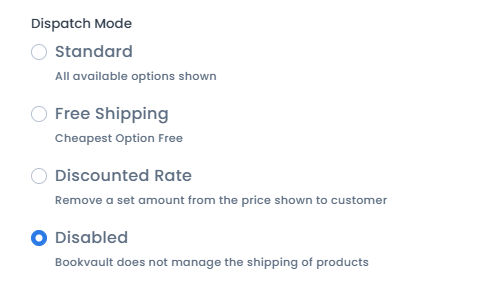
You can choose from:
- Standard
- Free Shipping
- Discounted Rate
- Disabled
Once changed, Bookvault will update the shipping profiles on your store.
Allow up to 1 hour for the changes to appear on your eCommerce platform.
Can I offer free shipping?
Yes. Select Free Shipping from your App Settings if you don't want your customer to be charged separately for delivery.
When Free Shipping is enabled, the order will be sent using the cheapest available delivery service.
Bookvault will still charge you the applicable shipping cost, so make sure you've accounted for this when setting the price of your book.
Can I use discounted shipping rates?
Yes. Select Discounted Rate from your shipping options if you want to offer your customers a reduced shipping rate.
Can I stop Bookvault shipping rates from appearing?
Yes. Select Disabled if you don't want Bookvault's automatic shipping rates assigned to your products.
Bookvault will continue to create and manage the shipping profile, but products will no longer be assigned to it by default.
How long do shipping changes take?
Allow up to 1 hour after changing your settings for the updated shipping profiles to appear on your store.