![Layer 2.png]](https://help.bookvault.app/hs-fs/hubfs/Layer%202.png?height=31&name=Layer%202.png)
Step 1: Start Your Instant Quote
Head to Bookvault and click "Get Your Quote Now!" on the homepage. This launches the step-by-step title builder, which walks you through every printing option and updates your live preview and quote as you go.
Step 2: Choose How You Want to Start
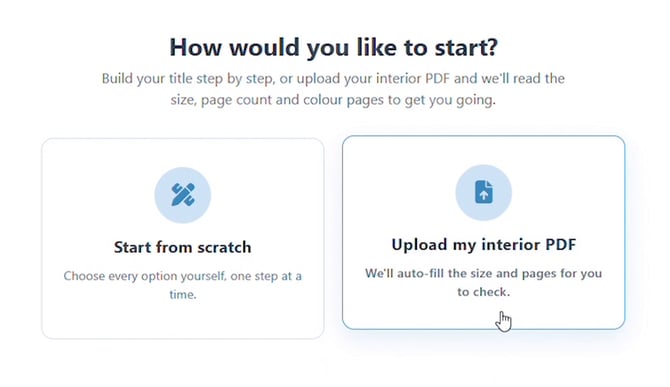
Next, decide how you'd like to begin. Choose "Start from scratch" to select every option yourself one step at a time, or "Upload my interior PDF" and Bookvault will automatically read your file to fill in the size, page count, and colour pages for you to check. This guide follows the "Start from scratch" path.
Step 3: Select Your Binding Type
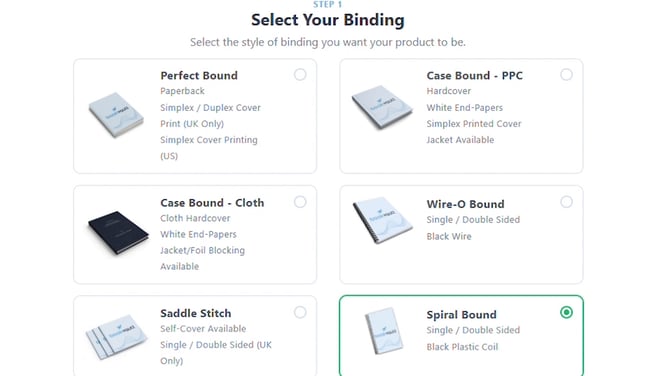
Choose the binding style for your book: Perfect Bound (paperback), Case Bound in PPC or Cloth (hardcover), Saddle Stitch, Spiral Bound, or Wire-O Bound. Each card lists its cover style and print availability. This example selects Spiral Bound — a coil-bound title with a black plastic coil, ideal for titles that need to lie flat or wrap fully open, like workbooks, cookbooks, or manuals.
Step 4: Select Your Lamination Finish
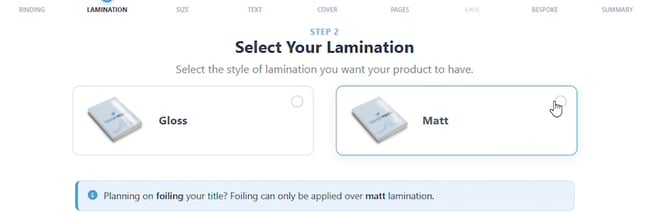
Pick a Gloss (shiny) or Matt (non-reflective) finish for your cover. Keep an eye on the note here: foiling can only be applied over a matt lamination, so this example chooses Matt to keep Advanced Cover Foiling available later.
Step 5: Choose the Size of Your Title
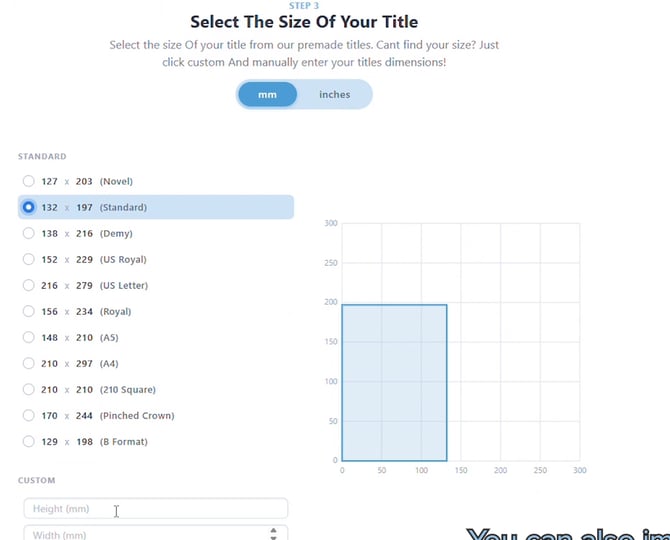
Select a standard trim size in millimetres or inches — Novel, Standard, Demy, US Royal, A5, A4, and more — or enter custom height and width dimensions if your title doesn't match a preset. The live graph on the right shows your selected dimensions to scale as you choose.
Step 6: Select Your Text (Interior) Stock
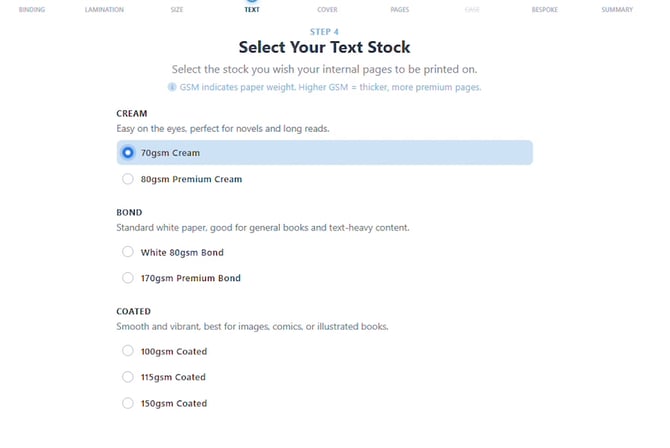
Choose the paper your interior pages will print on: Cream (easy on the eyes, ideal for novels and long reads), Bond (standard white paper for general and text-heavy books), or Coated (smooth and vibrant, best for images, comics, or illustrated books). Each option lists its GSM weight — higher GSM means thicker, more premium pages. This example selects 70gsm Cream.
Step 7: Select Your Cover Stock
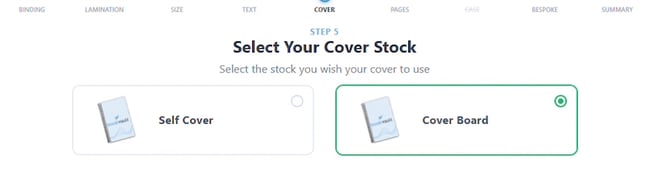
Choose Self Cover, which uses the same paper as your interior, or Cover Board, the standard 250gsm cover stock. This example picks Cover Board for a sturdier feel.
Step 8: Set Your Page Count and Print Colour
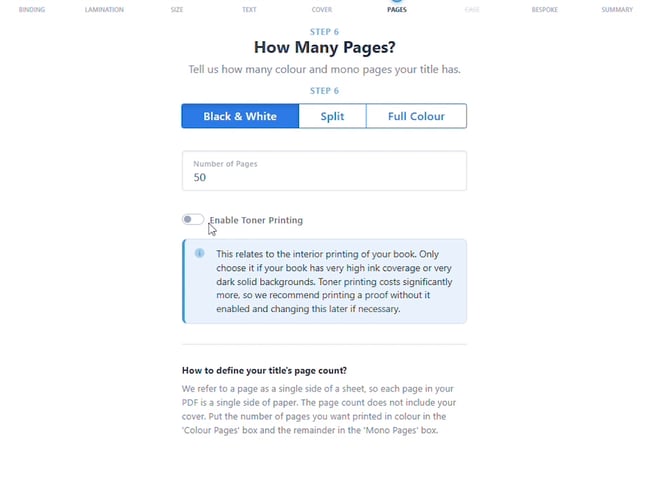
Enter the number of pages in your title, then choose whether they print in Black & White, Split, or Full Colour. If your book has very high ink coverage or solid dark backgrounds, you can enable Toner Printing — but this adds cost, so Bookvault recommends printing a proof first and enabling it later only if needed. This example prints 50 pages in Black & White.
Step 9: Explore Bespoke Finishes
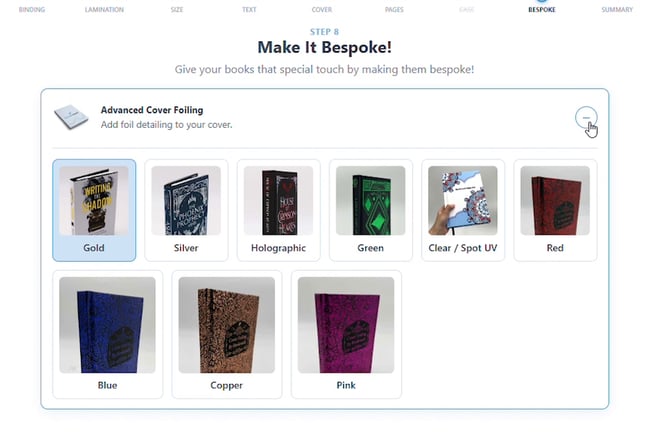
Because this example chose Matt lamination, Spiral Bound titles unlock Advanced Cover Foiling — the only bespoke option available for this binding, and it wouldn't have been offered at all with Gloss lamination. Pick a foil colour (Gold, Silver, Holographic, Green, Clear/Spot UV, Red, Blue, Copper, or Pink) and the live preview on the right updates immediately to show the foiled title.
Step 10: Review Your Quote
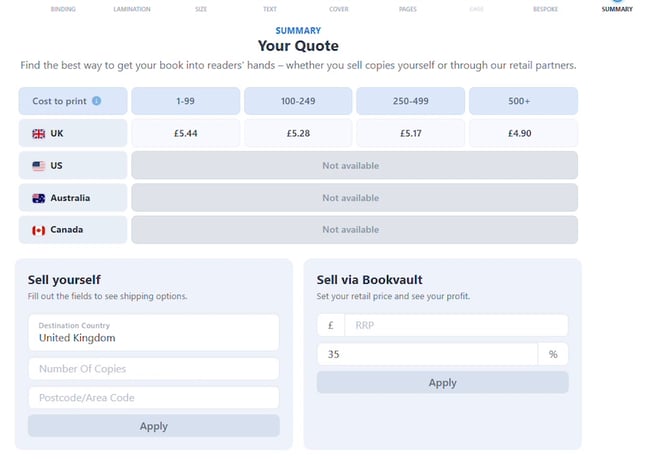
Your summary page shows the cost to print at different quantity tiers and by country, plus two ways to get your book to readers: "Sell yourself" (enter your destination and copy count to see shipping) or "Sell via Bookvault" (set your retail price to see your profit margin). Every option you selected is listed on the right — click any of them to jump back and amend it before you complete your order.
Step 11: Download Your Sizing Templates
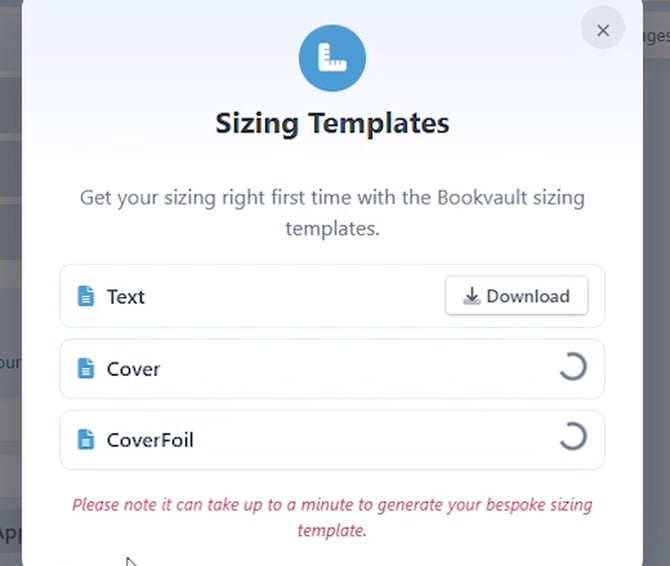
Before placing your order, download the Text, Cover, and CoverFoil sizing templates from the "Download Sizing Templates" button. These help make sure your interior and cover files are sized correctly the first time — note that bespoke templates, like ones for cover foiling, can take up to a minute to generate.
Step 12: Claim Your First-Order Discount
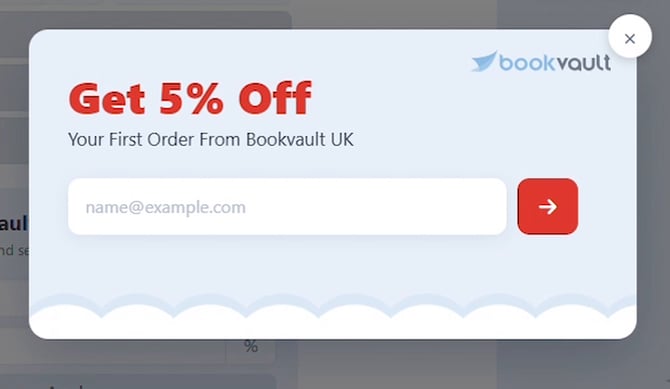
New to Bookvault? A "Get 5% Off" prompt appears offering a discount on your first UK order — just enter your email to claim the code before you check out.
Frequently Asked Questions
Is Bookvault's instant quote tool free to use?
Yes. Building your title and getting an instant quote is free, with no account or payment required until you actually place an order.
Can I skip building step by step and just upload my file?
Yes. Choose "Upload my interior PDF" on the second screen and Bookvault will auto-fill your size, page count, and colour pages based on the file — you can still review and edit every field before finalizing your quote.
What kind of titles suit Spiral Bound binding?
Spiral Bound uses a black plastic coil, single or double sided, and is well suited to titles that need to lie flat or wrap fully open — think workbooks, cookbooks, notebooks, or manuals.
What's the difference between Self Cover and Cover Board?
Self Cover uses the same paper as your book's interior for a lightweight, all-in-one feel, while Cover Board is a thicker, standard 250gsm stock for a sturdier cover.
Why can't I select foiling on this title?
Foil detailing can only be applied over a matt lamination. Choose Matt in the lamination step if you want Advanced Cover Foiling to appear under Make It Bespoke.
Is toner printing required?
No, it's optional and only recommended if your book has very high ink coverage or solid dark backgrounds. Since it adds cost, Bookvault suggests printing a proof without it first and enabling it later only if necessary.
Are all binding types available in every country?
No. Some bindings have their own country restrictions — for example, Perfect Bound's Simplex Cover Printing is UK or US only depending on the option, and Saddle Stitch's double-sided printing is UK only. Always check the note on each binding card.
Can I change an option after I've moved on to a later step?
Yes. On the final quote summary page, click any of the selections listed on the right-hand side to jump back to that step and amend it before completing your order.
How long do sizing templates take to generate?
Standard templates are typically instant, but bespoke templates — like ones for cover foiling — can take up to a minute to generate.